
Asset tag scanner for Android
Audit laptops, monitors, tools and equipment by scanning their asset tags and serial-number barcodes into your asset system, help desk ticket or audit sheet.
Audits without typing serial numbers
Serial numbers are long, look alike and mix letters with digits (is that an O or a 0?). An asset audit that relies on typing them produces records nobody trusts. ScanKeys reads the barcode on the tag and types it exactly, into whatever you already use: an asset management system in the browser, a help desk ticket, a Google Sheet or an Excel workbook.
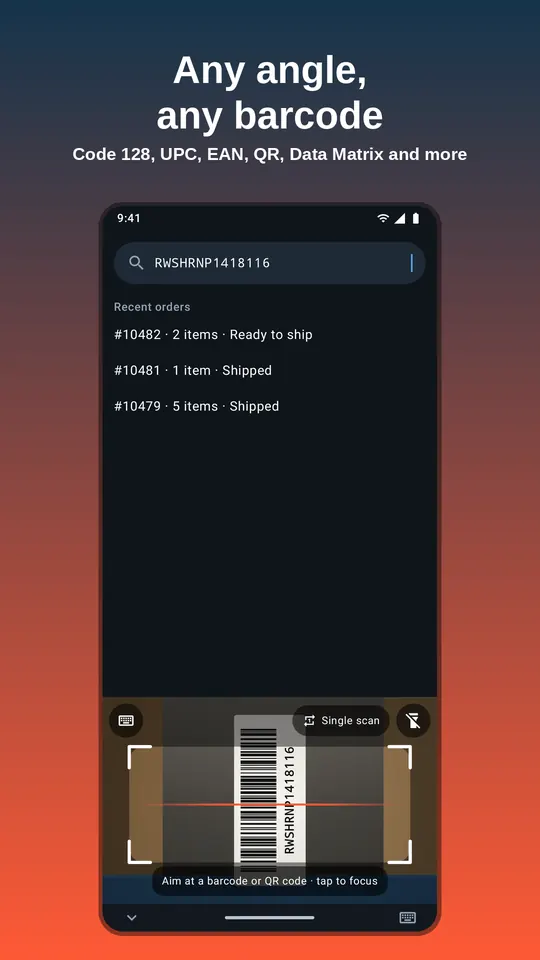
A simple audit workflow
- Open your audit sheet with columns for asset tag, serial, location, user.
- Set ScanKeys’ suffix to
\t, so each scan moves to the next column. - Scan the asset tag, then the manufacturer serial label, then type or scan the location label.
- Press Enter for the next row and move to the next device.
- Back at your desk, compare the sheet with your register: missing tags, unexpected locations and unknown devices stand out.
The Excel guide and Google Sheets page cover keeping leading zeros and formatting columns as text, which matters for serial numbers.
Scanning tips for small and awkward labels
- Tap the preview to focus on tiny labels and use the torch under desks and inside racks.
- Labels can be sideways or upside down; ScanKeys reads any angle, so you do not need to turn the device over.
- When a sticker has several barcodes (part number, serial, MAC address), centre the one you want; ScanKeys types the code nearest the middle.
- Restrict formats to the ones on your tags to stop stray codes being typed.
What to record in an equipment audit
A useful audit captures more than “seen / not seen”. For each item, record the asset tag, the manufacturer serial number, where it physically is (building, room, desk or rack position), who uses it, and its condition. Scanning covers the first two exactly, and if your rooms and racks carry location labels, scanning those too removes the most common audit error: the right device recorded in the wrong place. Afterwards, three lists matter: devices on the register that were not found, devices found that are not on the register, and devices found somewhere other than where the register says. Each list is a simple lookup in a spreadsheet when every value was scanned rather than typed.
Printing your own asset tags
Use a short, unique code such as IT-00421 in Code 128, or a QR code that holds a URL to the asset’s page in your system. Test the design with our free barcode generator and scan it with ScanKeys before ordering a batch of durable tags.
For large audits, ScanKeys Pro keeps a full history of everything you scanned and exports it as CSV, so an audit done offline in a server room can be uploaded later.