
How to scan barcodes into Excel on Android
With ScanKeys as your keyboard, the Excel app on your phone works like a spreadsheet connected to a barcode scanner: each scan fills the selected cell and moves to the next row.
Step by step
- Enable ScanKeys and make it the active keyboard.
- Open your workbook in the Microsoft Excel app. Add headers in row 1, such as Barcode, Qty, Location.
- Format column A as Text (see below) so leading zeros survive.
- Tap cell A2, then tap the formula bar or double-tap the cell so the keyboard opens.
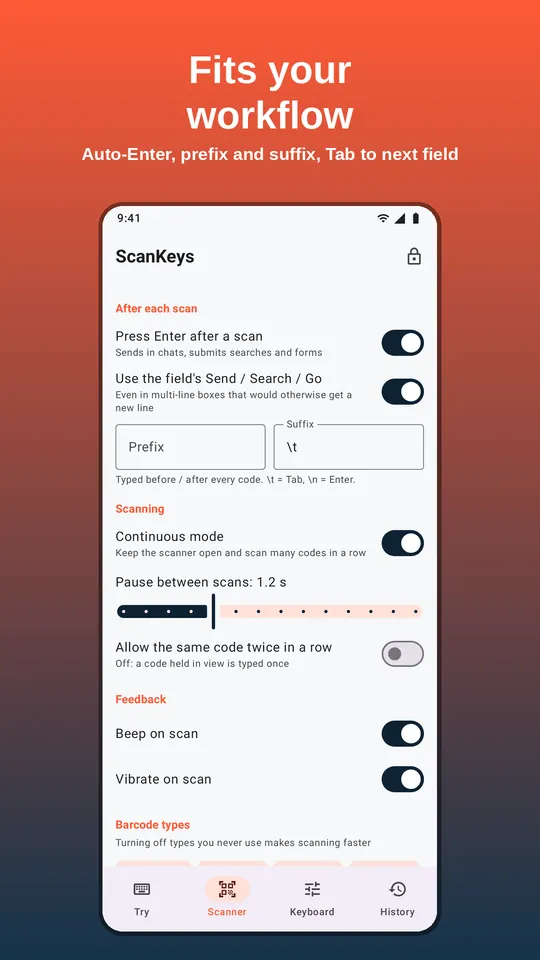
- Tap Scan and aim at the first barcode. The code fills A2 and, with Press Enter after a scan on, Excel moves to A3.
- For long lists, switch the scanner to Continuous and keep scanning down the column.
Keep leading zeros and long numbers intact
Excel converts anything that looks like a number. A UPC such as 036000291452 becomes 36000291452, and a 13-digit EAN may show as 4.00638E+12. Once that happens, the digits are gone. Prevent it before scanning:
- Format as Text: select the column, tap the format (Home) menu → Number Format → Text.
- Or use an apostrophe prefix: in ScanKeys settings set Prefix to
'. Excel stores the cell as text and does not display the apostrophe.
Fill across columns with Tab
To scan a row of codes (for example a product barcode, then a bin label), set ScanKeys’ Suffix to \t and switch Press Enter after a scan off. Each scan types the code and presses Tab, moving one cell to the right. When the row is done, press Enter on the keyboard to go to the next row. With Pro, save this as a per-app profile for Excel so other apps keep their own settings.
Handy Excel formulas for scanned data
- Quantity per barcode: in another sheet,
=UNIQUE(Sheet1!A2:A1000)in A2 and=COUNTIF(Sheet1!A:A, A2)beside it. - Product name lookup:
=XLOOKUP(A2, Products!A:A, Products!B:B, "unknown"). - Check digit test for 13-digit EANs (should return TRUE):
=MOD(10-MOD(SUMPRODUCT(MID(A2,ROW($1:$12),1)*{1;3;1;3;1;3;1;3;1;3;1;3}),10),10)=--RIGHT(A2)
If you count stock this way often, ScanKeys Pro’s inventory count mode does the tally for you and exports a CSV that opens straight in Excel.
A ready-made stock sheet layout
For a simple stock list, use four columns: Barcode (formatted as Text), Description, Qty and Location. Scan barcodes down column A with Enter after scan on. Fill Description with an XLOOKUP against your product list, so you can see at a glance which item each code belongs to and spot codes that are not in your catalogue at all. Type quantities in column C afterwards, or scan each unit and let a COUNTIF summary count them for you. Save a copy of the empty sheet as a template for the next count.
Troubleshooting
- Excel jumps two rows: you have both a
\nsuffix and Press Enter after a scan on. Use one or the other. - Nothing happens after a scan: the cell was not in edit mode. Double-tap the cell or tap the formula bar first.
- Codes go into one cell: Enter after scan is off and there is no suffix; turn one on.