
Shopify barcode scanner for Android
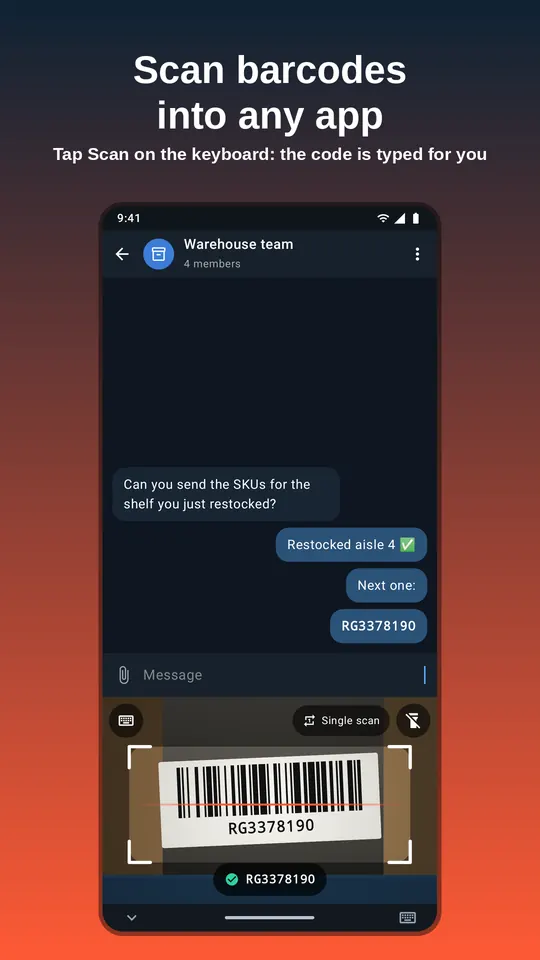
ScanKeys turns your phone into a barcode scanner for Shopify. Tap any field in the Shopify app or in Shopify admin in Chrome, tap Scan, and the barcode is typed in.
Why scan instead of typing
A UPC is 12 digits and an EAN is 13. Type a few hundred of them into product pages and you will make mistakes: a swapped pair of digits, a missing zero, a 13-digit code pasted into the wrong variant. A wrong GTIN can get a product rejected from Google Shopping or matched to someone else’s listing. Scanning types the exact digits that are printed on the box, every time.
ScanKeys is a keyboard, so it works anywhere the Shopify app or Shopify admin asks you to type. There is no separate scanner app and no copy and paste.
Where ScanKeys helps in Shopify
Adding products
Tap the Barcode (ISBN, UPC, GTIN, etc.) field on a product or variant, tap Scan, aim at the packaging. Then tap SKU and scan your shelf label if you print your own.
Finding products
Scan into the product or inventory search bar. With Enter after scan switched on, the search runs straight away.
Receiving and transfers
Scan SKUs and supplier codes into transfer and purchase order screens as stock arrives.
Stock counts
Use inventory count mode (Pro) to tally every barcode on a shelf, then import the counts.
Set it up in a minute
- Install ScanKeys from Google Play and follow the enable guide: turn it on in keyboard settings, switch to it, allow the camera.
- Open the Shopify app, go to a product and tap the Barcode field.
- Tap Scan on the keyboard and point the camera at the barcode on the packaging. The digits appear in the field.
- For a field-by-field workflow, turn Enter after scan off so the form is not submitted early, or set a
\tsuffix to move on to the next field. The Tab and Enter guide explains each option.
Pro users can save a per-app profile for Shopify: for example, no Enter in the Shopify app, but Enter after each scan in a browser search. ScanKeys switches settings for you when you move between apps.
Barcode formats you will meet in a Shopify store
Retail packaging carries UPC-A (12 digits, North America) or EAN-13 (13 digits, most of the world), sometimes UPC-E or EAN-8 on small items. Books carry an ISBN as an EAN-13 starting 978 or 979. Your own shelf labels are often Code 128 or QR. ScanKeys reads all of them:
- Code 128
- Code 39
- Code 93
- Codabar
- EAN-13
- EAN-8
- UPC-A
- UPC-E
- ITF
- QR Code
- Data Matrix
- PDF417
- Aztec
If you need labels for your own SKUs, make test codes with our free barcode generator. Code 128 is the usual choice for SKU labels because it holds letters, digits and dashes.
Tips for faster product data entry
- Switch off barcode types you never use in ScanKeys settings. Fewer formats means fewer false reads from nearby labels.
- On a crowded shelf, put the code you want in the middle of the frame: ScanKeys types the centre code.
- Use the torch in a dim stockroom and tap the preview to focus on small labels.
- Scanned a code you need again on another product? Open the history panel and tap it to type it again.