
Warehouse inventory count with a phone
Count stock with the phone in your pocket. ScanKeys scans shelf labels and SKUs continuously into any inventory app or sheet, and Pro’s count mode tallies every barcode and exports a CSV.
Three ways to count
1. Scan into your inventory system. If your warehouse app or web system has a count screen, open it, tap the SKU field and use continuous scanning. ScanKeys types each label into the field, and Enter after scan moves to the next line.
2. Scan into a spreadsheet. Open Google Sheets or Excel, put the cursor in column A and scan down the shelf. Each code lands in its own row. See Google Sheets and Excel.
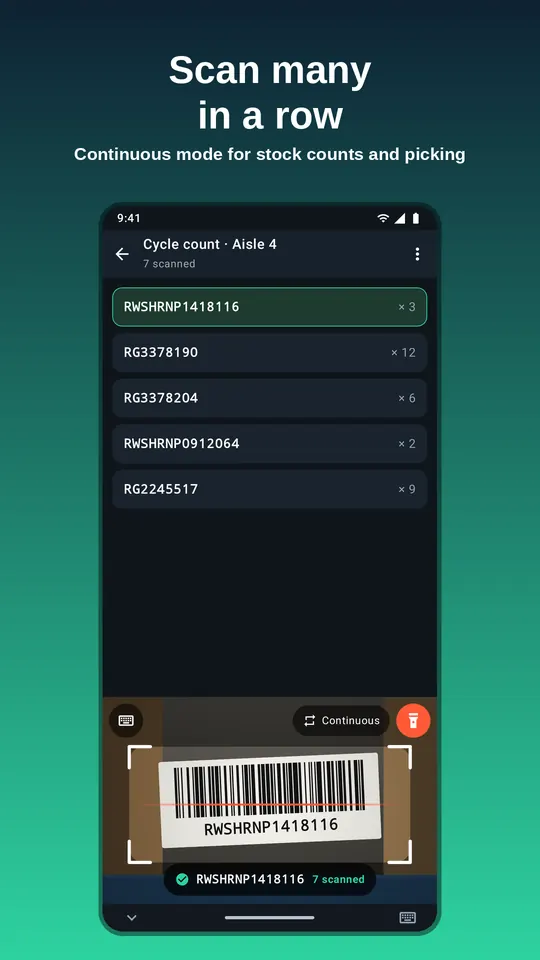
3. Use inventory count mode (Pro). ScanKeys keeps a tally per barcode as you scan: scan the same SKU five times and it shows 5. When you are done, export a CSV for a Shopify or Veeqo stock import.
Cycle counts vs full stock takes
A full stock take counts everything at once, usually with the store or warehouse closed. A cycle count counts a small slice every day or week (one aisle, one supplier, the fastest movers) so that errors are found early and you never need to close. Phone scanning suits cycle counts especially well: anyone on the team can count an aisle in ten minutes without fetching a shared scanner.
A simple cycle-count plan:
- Count A items (your top sellers by value) every month, B items every quarter, C items twice a year.
- Count by location, bin by bin, so missed shelves stand out.
- Count before receiving or after picking, not during, so stock is not moving under you.
- Investigate any variance above a threshold you choose (for example 2 units or 5%) before adjusting stock.
Setting up the scanner for counting
- Switch the scanner to Continuous so it stays open between labels.
- Set the pause between scans to match your pace: shorter for labels close together on a shelf edge, longer when you need to pick up each item.
- Decide on duplicates: leave the duplicate guard on when each label should be typed once (bin labels), or allow the same code twice in a row when you scan every unit.
- Switch off barcode formats you do not use, so a nearby QR code or carton label is not typed by mistake.
- Use the torch for top shelves and dark corners.
Free users get 30 continuous scans a day, enough to try a shelf. A full count needs ScanKeys Pro, which removes the limit and adds count mode and export.
Label tips that make counting faster
- Use Code 128 for SKU and bin labels: compact, holds letters and digits, and every scanner reads it.
- Print one barcode per label where possible. If a label must carry several, ScanKeys types the one in the centre of the frame.
- Laminate or use synthetic labels on freezer and outdoor shelves; scuffed thermal labels read poorly with any scanner.
- Test a new label design with our barcode generator before printing a thousand.