
eBay barcode scanner for listings
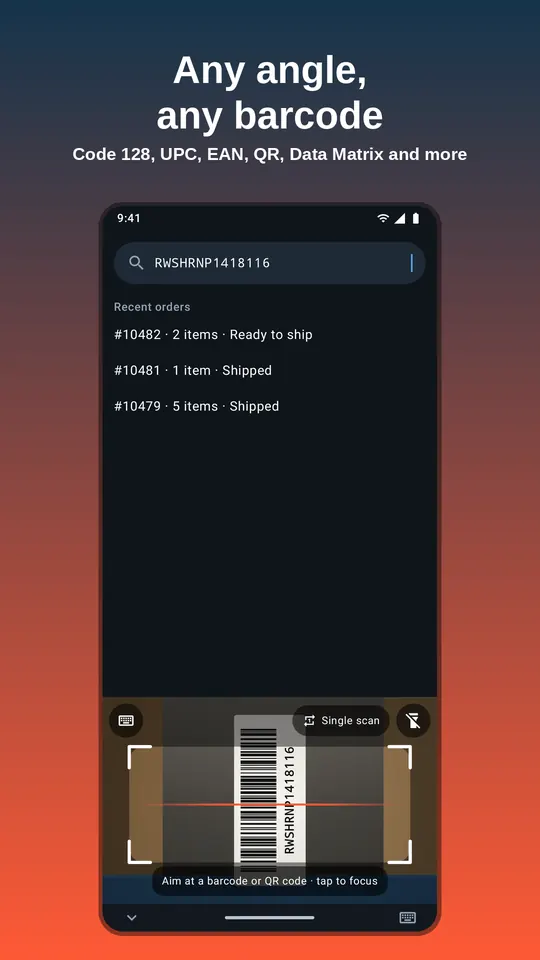
Fill the UPC, EAN, ISBN and MPN fields on eBay listings by scanning the box. ScanKeys types the barcode into whichever eBay field you are in, in the eBay app or in Seller Hub on your phone’s browser.
Product identifiers without the typos
eBay uses product identifiers (UPC, EAN, ISBN, plus brand and MPN) to match your item to its catalogue, show it in product-based search results and fill item specifics. A mistyped identifier can put your listing on the wrong product page or keep it out of search. Scanning the barcode types exactly what is printed.
ScanKeys is the keyboard, so it works in every eBay field: UPC, EAN, ISBN, MPN and custom label (SKU), the search bar, and notes. It works the same in the eBay app, in Seller Hub in Chrome, and in third-party listing tools.
A fast listing routine
- Open a listing in the eBay app or Seller Hub and tap the UPC (or EAN / ISBN) item specific.
- Tap Scan and aim at the barcode. ScanKeys types the full number including the check digit.
- Tap Custom label (SKU) and scan your own shelf or bin label so you can find the item when it sells.
- Keep Enter after scan off for listing forms so nothing submits early, or use smart submit to let the field decide.
Sourcing: scan to search
Resellers in thrift stores, outlets and library sales check prices by searching for the item’s barcode. With ScanKeys, tap eBay’s search bar, tap Scan, and with Enter after scan on the search runs by itself. Filter to sold items and you have a price check in seconds. The camera opens inside the keyboard, so you never leave the eBay app, and scanning works without signal in the back of a store. Results still need a connection, of course.
Labels and SKUs for your own stock
Many sellers put a Code 128 label with their own SKU on each bag or bin. Scan it into eBay’s custom label field when listing, and scan it again into search when the item sells to find it on the shelf. Make labels with the free barcode generator, and keep a running list of what you listed with ScanKeys Pro’s history export (CSV, Google Sheets or share).
Formats eBay sellers meet
- Code 128
- Code 39
- Code 93
- Codabar
- EAN-13
- EAN-8
- UPC-A
- UPC-E
- ITF
- QR Code
- Data Matrix
- PDF417
- Aztec
UPC-A and EAN-13 cover nearly all retail products; ISBN-13 is an EAN-13; small items may use UPC-E or EAN-8. Collectibles and electronics sometimes have Code 128 or Data Matrix serial labels, which ScanKeys also reads.