
How to enable the ScanKeys keyboard
Android keyboards have to be switched on in system settings before you can use them. ScanKeys walks you through it when you first open the app; this guide covers the same steps, plus Samsung menus and fixes.
The four steps
- Install ScanKeys from Google Play and open it. The setup screen explains what it will ask for.
- Turn it on. Tap the enable button; Android opens the list of keyboards. Switch on ScanKeys and confirm Android’s standard notice.
- Switch to it. Back in ScanKeys, tap the switch button and choose ScanKeys in Android’s keyboard picker.
- Allow the camera. Tap Scan for the first time and allow camera access “while using the app”. Then try a scan in the app’s Try tab.
Where the keyboard setting lives
If you skipped the setup screen, or want to turn ScanKeys off later, the setting is in Android’s system menus. The names vary a little by phone:
- Pixel and most Android phones: Settings → System → Keyboard (or Languages & input) → On-screen keyboard → Manage on-screen keyboards → ScanKeys.
- Samsung Galaxy: Settings → General management → Keyboard list and default → switch on ScanKeys. Choose it as the default keyboard on the same screen if you like.
- Motorola, OnePlus, Xiaomi: search Settings for “keyboard” or “on-screen keyboard”.
Switching between ScanKeys and your usual keyboard
Many people keep their favourite keyboard for writing and switch to ScanKeys for scanning sessions. Three ways to switch:
- Tap the small keyboard icon at the bottom right of the screen (in the navigation bar) while a keyboard is open, then choose ScanKeys.
- On ScanKeys, tap the globe key to jump back to your previous keyboard.
- On Gboard, long-press the space bar or tap its globe key to open the keyboard picker.
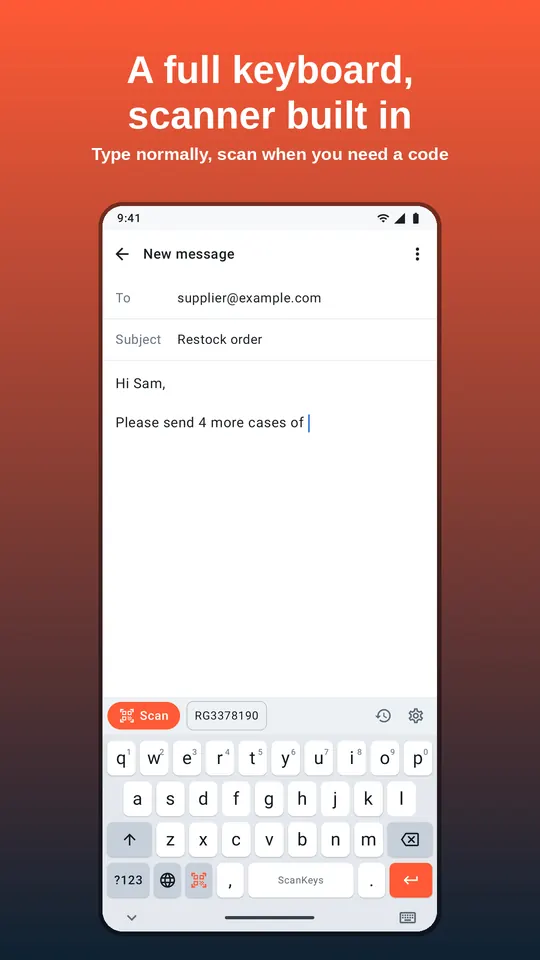
ScanKeys is a complete QWERTY keyboard with a number row option, long-press accents and four key heights, so you can also simply keep it as your everyday keyboard.
Your first scan
- Open any app with a text field: Notes, Messages, Google Sheets, your browser.
- Tap the field so ScanKeys appears, then tap Scan.
- Point at any barcode: a product in your kitchen, or a code from our barcode generator on your computer screen.
- The code is typed in. With Press Enter after a scan on (the default), the field is also submitted. Turn that off in settings if you are filling forms; see Tab and Enter after a scan.
If something does not work
- ScanKeys is not in the keyboard list: make sure the install finished, then restart the phone.
- The scanner shows a black preview: another app may be using the camera; close it and tap Scan again.
- Codes are not read: move the phone 10 to 20 cm away, tap the preview to focus, switch on the torch, and check the code’s type is enabled under Barcode types.
- The wrong code is typed: put the barcode you want in the middle of the frame; ScanKeys types the centre code.
Still stuck? Email support@dixonappstudio.com with your phone model and Android version.
Frequently asked questions
Why does Android say the keyboard may collect everything I type?
Android shows that notice for every keyboard that is not built into the phone. ScanKeys does not store, log or analyse what you type. The privacy policy explains exactly what it keeps (only your scan history, on the phone).
Do I have to give up my usual keyboard?
No. Leave Gboard or Samsung Keyboard on as well, and switch between them with the keyboard button at the bottom of the screen or the globe key on ScanKeys.
The Scan key says the camera is blocked. What now?
Open Android Settings → Apps → ScanKeys → Permissions → Camera and choose “Allow only while using the app”. Also check that the quick-settings camera access toggle (Android 12 and later) is on.
ScanKeys disappeared in a password field. Is that a bug?
No. Android switches to a secure keyboard in some password fields, and some banking apps only allow the built-in keyboard. It switches back when you leave the field.