
QR code to keyboard: type what a QR code says
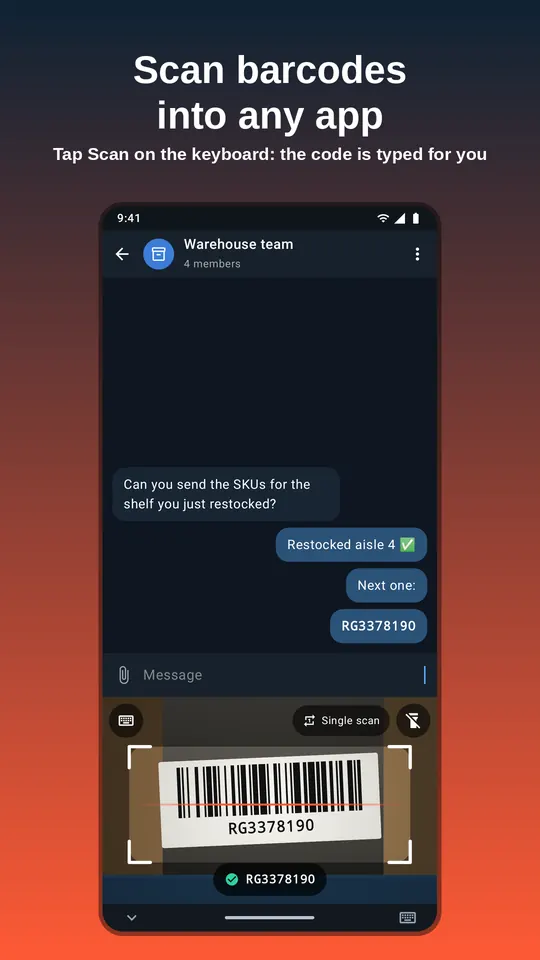
Most QR readers open a link. ScanKeys does something different: it types the QR code’s contents into the text field you are using, in any app, so you can paste-free fill a form, a sheet or a message.
Why type a QR code instead of opening it?
QR codes are everywhere at work, and most of them are not web links meant for you to visit. They hold serial numbers on equipment, order and parcel IDs on packing slips, part numbers on bins, tickets and booking references, and Wi-Fi network details. What you need is that text in a form, a spreadsheet or a message.
A camera app would open a browser or show a pop-up you then copy from. ScanKeys skips that. Tap the field, tap Scan, aim at the QR code, done.
Everyday examples
Packing slips
Scan the QR on a marketplace packing slip into your order search to pull up the order.
Equipment
Scan a QR asset tag into a help desk ticket so the device is identified exactly. See asset tags.
Sharing a link safely
Scan a QR code into a chat to send the link to a colleague, without opening it on your phone first.
Lists
Scan a stack of QR labels into Google Sheets, one per row, with continuous mode.
How to do it
- Install ScanKeys and switch to it.
- Tap the field where the text should go.
- Tap Scan and point at the QR code. Its contents are typed in.
- Decide what happens next: Enter after scan sends the message or runs the search; turn it off for forms.
If a QR code holds a Wi-Fi network (it starts with WIFI:), ScanKeys types the raw text, which shows the network name and password, for example to paste into a laptop’s settings.
QR codes and safety
Fake QR codes stuck over real ones (on parking meters, posters and parcels) are a common scam, because a camera app opens the link before you have a chance to look at it. Typing the content instead gives you that chance: scan the code into a note or a search box, read the address, and only then decide whether to open it. For work codes, such as an order ID or a part number, nothing needs opening at all; the value is simply typed where you need it.
Formats ScanKeys reads
- Code 128
- Code 39
- Code 93
- Codabar
- EAN-13
- EAN-8
- UPC-A
- UPC-E
- ITF
- QR Code
- Data Matrix
- PDF417
- Aztec
2D codes (QR, Data Matrix, PDF417, Aztec) and the common 1D barcodes are all read on the phone, offline, at any angle. Need to make one? Use the free QR code and barcode generator.