
Retail barcode scanner on your phone
For small shops, pop-ups and market stalls: ScanKeys scans UPC and EAN codes into whatever retail app or web page you use, from price lookups to receiving and reorders.
Every retail job that involves typing a code
Price checks
Scan into your POS or catalogue search with Enter after scan on, and the item comes up.
Receiving
Scan each product into the delivery or purchase order screen as you unpack.
Reorders
Walk the shelves and scan low items into a reorder list, a supplier’s web form or a sheet.
Counts
Tally stock per barcode with count mode and export a CSV.
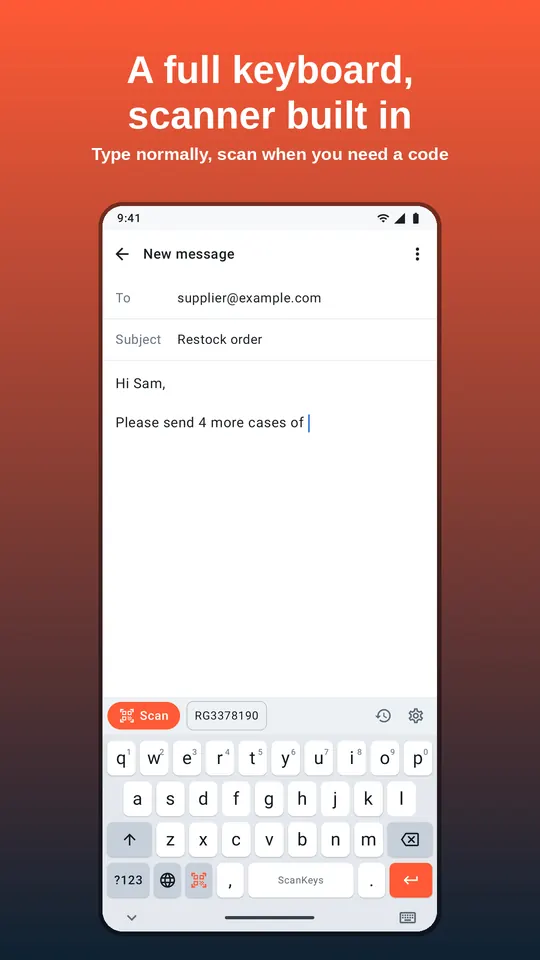
Why a keyboard scanner suits small retail
Most retail software was built for USB and Bluetooth scanners that behave like a keyboard: they type the code and press Enter. ScanKeys behaves the same way, using the phone’s camera, so it works with software that has never heard of it. There is nothing to pair, no charging cradle and no driver. Staff use their own phones or a shared shop phone, and every phone can scan.
Codes you will scan in a shop:
- UPC-A and UPC-E on products made for the US and Canada.
- EAN-13 and EAN-8 on products from almost everywhere else, plus ISBN on books.
- Code 128 and QR on your own shelf-edge labels, supplier cartons and click-and-collect slips.
Set up for a till or price check
- Turn on Enter after scan so each scan submits the search, exactly like a hardware scanner.
- Switch on smart submit if your POS is a web page: ScanKeys presses the field’s own Search or Go action.
- Switch off formats you do not use, so a QR code on a poster is not read instead of the product.
- Turn the scan beep on in a quiet shop for confirmation, or off on a busy floor and rely on vibration.
On Pro, a per-app profile lets the POS get Enter after each scan while your reorder sheet gets a Tab, without changing settings each time.
Receiving a delivery, step by step
- Open the purchase order or delivery screen in your stock system, or a receiving sheet with columns for barcode and quantity.
- Scan each product as you unpack it. With continuous mode on, you can work through a carton without touching the phone.
- Compare what arrived with what was ordered; anything scanned that is not on the order shows up immediately.
- Put stock away and, if you track locations, scan the shelf label after each product.
Make shelf labels for products without a barcode
Handmade goods, loose produce and bundles often have no barcode. Give them an internal code and print a Code 128 or QR label. Our free barcode generator makes both and downloads PNG or SVG for your label printer. Keep the code identical to the SKU in your POS so scanning finds it.